
If you’ve recently purchased a new router or want to change your Wi-Fi password, you’ve probably come across 10.0.0.1 login. This private IP address is commonly used to access a router’s administrative dashboard, where you can manage network settings, security, and connected devices.
In this guide, we’ll walk you through everything you need to know about logging in to 10.0.0.1, troubleshooting issues, and keeping your network secure.
What Is 10.0.0.1?
10.0.0.1 is a private IPv4 address used as a default gateway by many router brands. It allows users to access the router’s admin panel through a web browser.
Some popular router manufacturers that may use 10.0.0.1 include:
- Cisco
- D-Link
- Netgear
- Comcast (Xfinity routers)
Keep in mind that not all routers use 10.0.0.1 — some use alternatives like 192.168.1.1 or 192.168.0.1.
How to Access the 10.0.0.1 Login Page
Follow these simple steps:
Step 1: Connect to Your Router
Make sure your device (PC, laptop, or smartphone) is connected to the router via:
- Wi-Fi
- Ethernet cable
Step 2: Open a Web Browser
Launch any browser such as:
- Google Chrome
- Mozilla Firefox
- Microsoft Edge
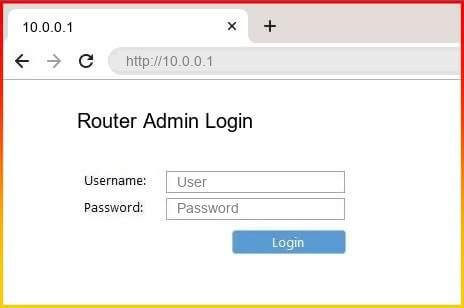
Step 3: Enter the IP Address
Type the following into the address bar:
http://10.0.0.1
Press Enter.
Step 4: Enter Login Credentials
You’ll be prompted to enter:
- Username
- Password
If you haven’t changed them, the default credentials are often:
- Username: admin
- Password: admin or password
(These vary depending on the router brand.)
What Can You Do After Logging In?
Once inside the admin dashboard, you can:
- Change Wi-Fi name (SSID)
- Update Wi-Fi password
- Configure parental controls
- Set up a guest network
- Manage connected devices
- Update firmware
- Adjust security settings
This control panel gives you full authority over your home or office network.
Forgot Your Router Login Details?
If you’ve forgotten your admin username or password, try these solutions:
✔ Check the Router Label
Most routers have a sticker on the back or bottom listing default login credentials.
✔ Reset the Router
If credentials were changed and forgotten:
- Locate the Reset button on the router.
- Press and hold it for 10–30 seconds.
- Wait for the router to reboot.
This restores factory settings, including the default login details.
Note: Resetting will erase all customized settings.
10.0.0.1 Login Not Working? Here’s Why
If you cannot access the login page, possible reasons include:
1. Incorrect IP Address
Make sure you typed 10.0.0.1 correctly — no extra spaces or digits.
2. Wrong Default Gateway
Your router might use a different IP. To check:
- On Windows:
- Open Command Prompt
- Type: ipconfig
- Look for “Default Gateway”
3. Network Connection Issue
Ensure your device is properly connected to the router.
4. Browser Cache Problem
Clear your browser cache or try a different browser.
Security Tips for 10.0.0.1 Login
To keep your network safe:
Change Default Admin Credentials
Leaving “admin/admin” makes your network vulnerable.
Use a Strong Wi-Fi Password
Include:
- Uppercase letters
- Lowercase letters
- Numbers
- Special characters
Enable WPA3 or WPA2 Encryption
Avoid outdated security protocols like WEP.
Regularly Update Firmware
Router updates fix security vulnerabilities.
Final Thoughts
The 10.0.0.1 login page is your gateway to managing your router and securing your network. Whether you want to change your Wi-Fi password, set parental controls, or troubleshoot connectivity issues, accessing the admin panel is essential.
FAQs – 10.0.0.1 Login
1. What is 10.0.0.1 used for?
10.0.0.1 is a private IP address commonly used as a router’s default gateway. It allows users to access the router’s admin panel to manage Wi-Fi settings, passwords, security options, and connected devices.
2. How do I log in to 10.0.0.1?
Follow these steps:
- Connect your device to the router (Wi-Fi or Ethernet).
- Open a web browser.
- Type http://10.0.0.1 into the address bar.
- Enter your admin username and password.
- Click Login.
3. What is the default username and password for 10.0.0.1?
The default credentials depend on the router brand. Common defaults include:
- Username: admin
- Password: admin or password
Brands like Cisco, Netgear, and D-Link may use different credentials. Always check the label on your router.
4. Why is 10.0.0.1 not loading?
Possible reasons include:
- You typed the IP incorrectly.
- Your router uses a different gateway (such as 192.168.1.1).
- You are not connected to the router.
- Browser cache issues.
Try checking your default gateway using the ipconfig command (Windows) or network settings (Mac).
5. How do I reset my 10.0.0.1 login password?
If you forgot your admin password:
- Locate the Reset button on the router.
- Press and hold it for 10–30 seconds.
- Wait for the router to reboot.
This restores factory settings and default login details.
⚠️ Note: Resetting will remove all custom settings.
6. Can I change my Wi-Fi password using 10.0.0.1?
Yes. After logging in:
- Go to Wireless Settings or Wi-Fi Settings
- Enter a new password
- Save changes
Your devices will need to reconnect using the new password.
7. Is 10.0.0.1 safe to use?
Yes, it is a private IP address used only within your local network. However, you should:
- Change default login credentials
- Enable WPA2 or WPA3 encryption
- Keep router firmware updated
8. Can I access 10.0.0.1 from my phone?
Yes. As long as your smartphone is connected to the router’s Wi-Fi, you can open a browser and enter http://10.0.0.1 to log in.
9. What should I do if I see “Invalid IP Address”?
Make sure:
- You entered the IP in the address bar (not the search bar).
- You are connected to the correct network.
- Your router actually uses 10.0.0.1 as the default gateway.
10. Does every router use 10.0.0.1?
No. Some routers use other private IP addresses such as:
- 192.168.1.1
- 192.168.0.1
Check your router manual or device label for the correct IP address.